How to Export Google Maps Business Leads to Excel or CSV
To export Google Maps business leads to Excel, choose a business type and location, collect the matching records, then download a filtered business list as XLSX or CSV. ScrapePlaces handles the collection and export. You decide which businesses and contact details belong in the file.
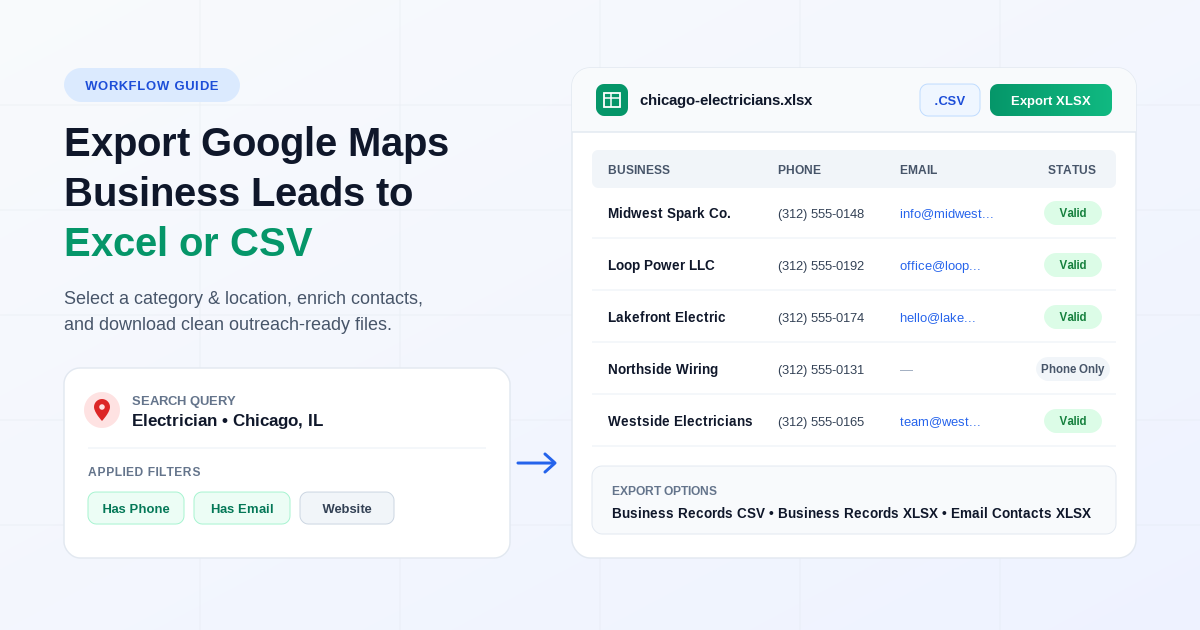
This walkthrough uses electricians in Chicago as the search example. The screenshots show existing ScrapePlaces lists. The downloadable CSV comes from the site's separate public dental-business sample, so you can inspect a real file before collecting your own market.
Decide what each row should represent
Start with the job the spreadsheet needs to do. A calling list needs business names, phone numbers, locations, and a place to record outcomes. An email campaign needs published email addresses and evidence that each address belongs to the intended business. An agency prospect list also benefits from website links and a specific reason to contact each company.
There are two useful ways to organize the export:
| Export | One row represents | Best use |
|---|---|---|
| Business records CSV | A business | CRM imports, combining markets, and custom processing |
| Business records Excel | A business | Reviewing and sorting records in a spreadsheet |
| Email contacts Excel | An email address | Reviewing the individual addresses available for outreach |
Several emails can belong to one business. Count businesses and email contacts separately when planning a campaign.
Choose a business category and a precise location
Open the ScrapePlaces list builder. For this example, enter Electrician, choose United States, select Illinois, and choose Chicago.
Start with a single market you can serve. If your agency works only within Chicago, adding every Illinois city creates extra records to review. If you serve several cities, select them deliberately and keep the category consistent so the results remain comparable.
The builder supports guided searches, custom queries, and a top-cities approach. Guided search is a useful starting point when you know the category and service area. Review the coverage setting and query preview before ordering, especially when a city name also describes a wider metropolitan area.
Already purchased the market? Open your existing list first. Searching saved records and creating a fresh collection task are separate actions.
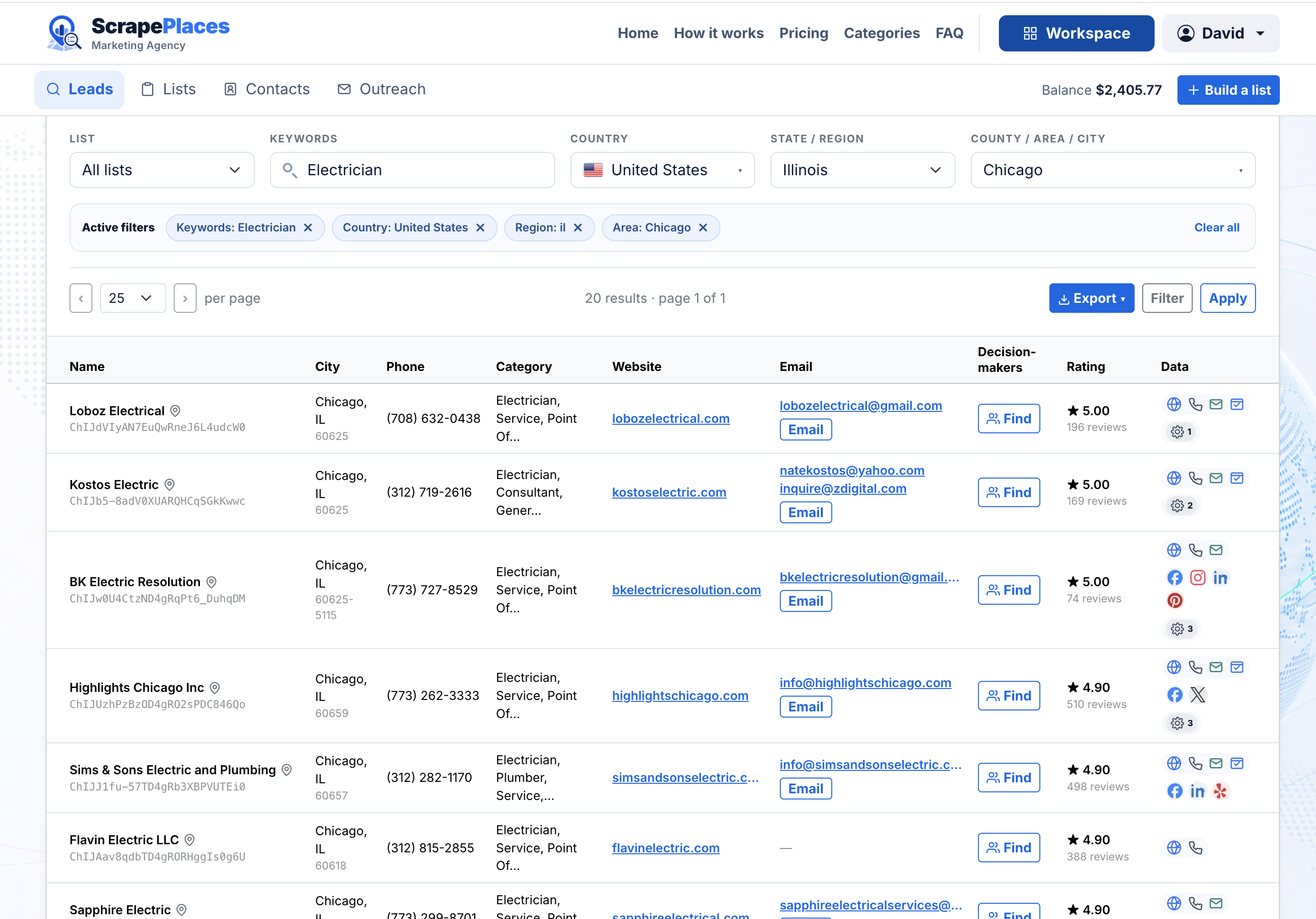
An existing Chicago electrician search. The filters identify the market, and each result keeps its business and contact details together. The displayed count describes this saved search, not every electrician in Chicago.
Pick the contact data you need
The data pack affects which fields can be collected. All three packs start with place data. The Complete Data Pack includes phone numbers, email discovery and validation, social links, and company insights. The Cold Email Pack focuses on email and website context. The Cold Calling Pack focuses on phone details and company context.
Check the data pack descriptions before choosing. A pack defines the work included, but a business still needs to publish the information for it to appear. A blank email cell can be a valid result.
Email discovery also adds a separate source of information. Business names, locations, ratings, and website links start with the Google Maps business record. Published email addresses are found through website enrichment. An email in the export should not be described as an email field supplied by Google Maps.
Review the estimate and collect the records
Check the business estimate, price, search scope, and selected pack together. The expected business count is a projection. It is different from the number of businesses already saved in your workspace and from the number of records a finished task eventually returns.
Once the scope fits, create the task. Collection runs in the background. Wait for the task and the enrichment work you need to finish before preparing the final file. An early download may contain the business records while some contact fields are still being processed.
The task creation guide explains the builder and estimate in more detail.
Filter the finished list before exporting
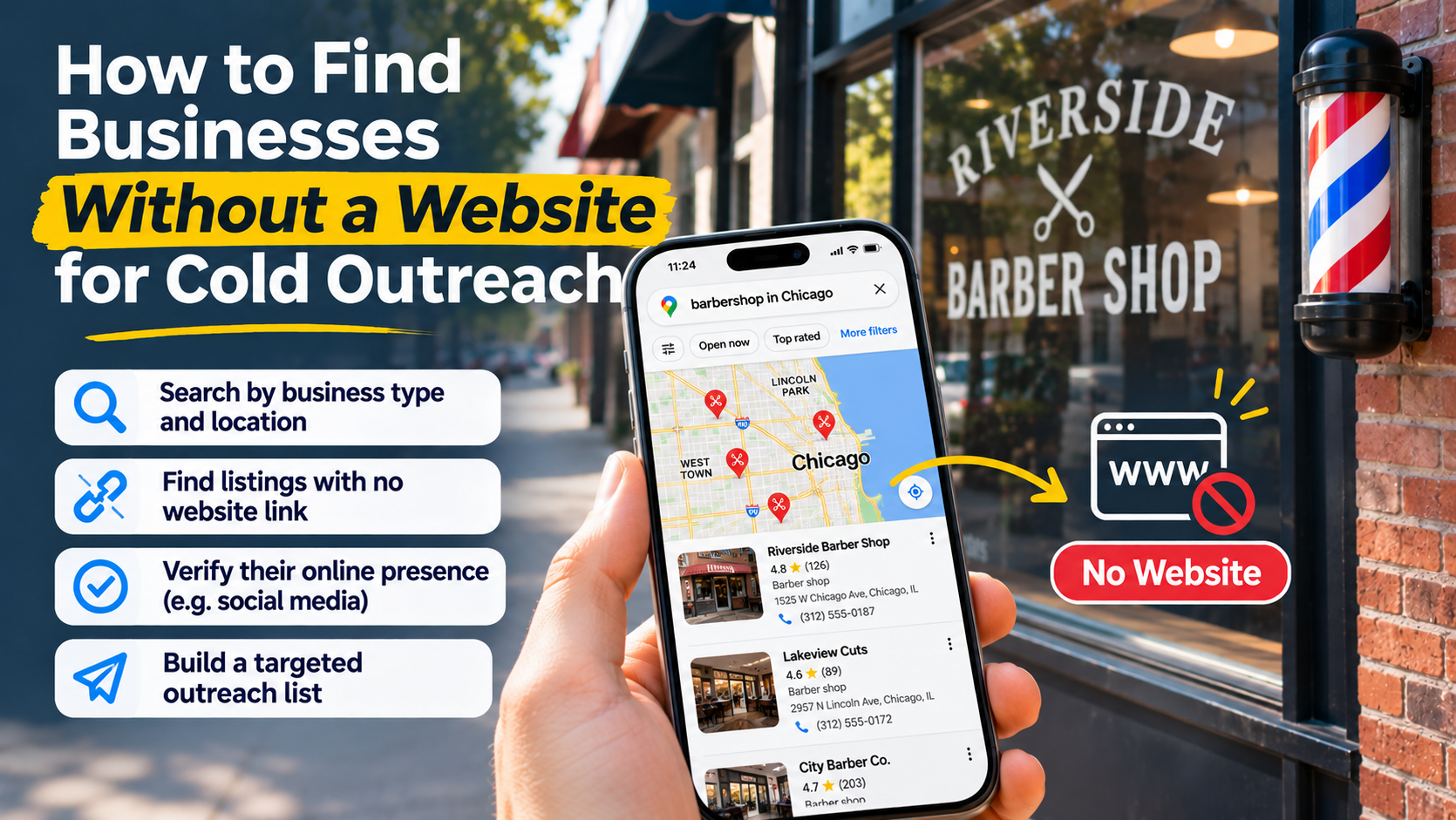
Open the finished list from your workspace, then apply the filters that match your next action. For a calling campaign, start with Has phone. For an email campaign, start with Has email, then review the addresses and their validation information. For web design prospecting, use No website and verify the apparent gap before contacting the business.
Check geography and category as well as contact availability. A business can be reachable and still fall outside your service area. Review branches and similarly named businesses before merging them. Separate locations may deserve separate business rows even when they share one central email address.
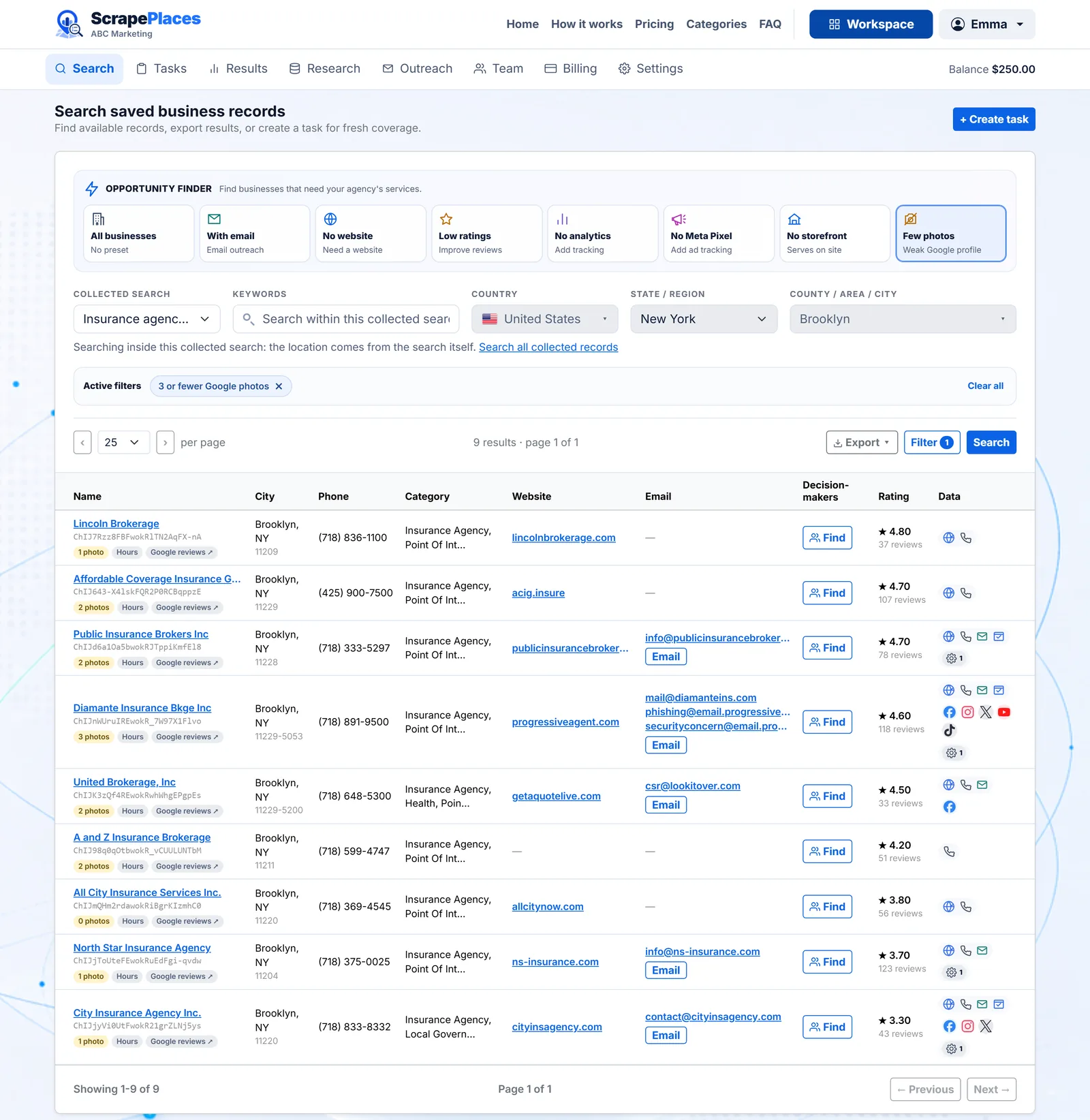
A second saved-list example shows the Export control above the table. Set the list and filters first so the download contains the intended records.
Download the CSV or Excel file
Open Export above the results. Check the scope shown in the menu, then choose Business records CSV, Business records Excel (XLSX), or Email contacts Excel (XLSX). Exports follow the current search and filters. The rows visible on a paginated screen are not a reliable way to count the full export.
Use XLSX for a straightforward review in Excel. Use CSV when your CRM or another application requests it. Before importing CSV into Excel, use Data → From Text/CSV and set phone, postal-code, and identifier columns to text. This helps preserve leading zeros, international prefixes, and long IDs.
Keep the original export and do your cleanup in a copy. When you map fields to a CRM, preserve the business identifier or Google Maps URL alongside the name. Those fields help distinguish two branches with similar names.
Inspect a real sample CSV
Download the sample business CSV. It contains a small selection of columns from the site's public Excel sample, exported in June 2026. It is a historical example, not a fresh lead list or a delivery check.
Notice the separate Website, Email, and Email Source URL columns. Keep those distinctions in your own CRM. A blank email stays blank. A source URL records where an address was found; it does not prove the mailbox will accept a message today.
Check the file before importing it
Before you upload the spreadsheet, confirm that:
- The exported market and category match the campaign.
- Phone numbers, postal codes, and business IDs retain their original text.
- Branches and repeated records have been reviewed before merging.
- Each email belongs to the intended business and has suitable validation evidence.
- Existing customers, prior contacts, unsubscribed addresses, and do-not-contact records are excluded where appropriate.
Keep a working column for the next action, such as “verify website,” “call,” or “research contact.” The spreadsheet becomes more useful when every retained business has a clear next step.
Ready to build your own file? Choose a business type and market and review the estimate before collecting the list.